Prefer HTTPS
Seedly also works over plain HTTP, because many home servers offer nothing else, and it warns you when HTTPS is off. Use HTTPS or a VPN whenever you reach the server over the internet.
 Seedly - Torrent RemoteMagyar
Guide
What to turn on in Transmission, qBittorrent or Deluge, and how to add the server in Seedly.
Seedly works with Transmission 3.x and 4.x (remote control, RPC), with qBittorrent 5.0 or newer (Web UI) and with Deluge 2.0 or newer (Web UI). These are the steps on the server side; the first four are for Transmission, the fifth for qBittorrent, the sixth for Deluge.
In Transmission, enable remote control (the web interface). In the daemon’s settings.json this is the rpc-enabled option.
Add the network your phone connects from to the access list (rpc-whitelist), or turn the list off on a network you trust.
Turn on authentication (rpc-authentication-required) and set a username and password. Seedly sends them with HTTP Basic authentication.
Unless you changed them, the port is 9091 and the RPC path is /transmission/rpc.
In qBittorrent, open Options, then Web UI, enable it and set a username and password. The default port is 8080. Seedly needs qBittorrent 5.0 or newer, and there is no path to enter. After too many wrong passwords qBittorrent bans the device for a while.
Seedly talks to the Deluge Web UI (deluge-web), whose default port is 8112. It logs in with the password only; Deluge has no username. Change the default password. The Web UI must be connected to a daemon: if its Connection Manager appears when you open it in a browser, connect it to your daemon, because Seedly reports an error until it is. Seedly needs Deluge 2.0 or newer.
Open Settings, then Servers, then add one. Choose Transmission, qBittorrent or Deluge, enter the host name or IP address, the port, whether to use HTTPS and, for Transmission, the RPC path (for Deluge only the base path, if the Web UI sits behind a reverse proxy; Deluge asks for a password and no username), and use Test connection before saving. The password is kept in your device’s secure storage.
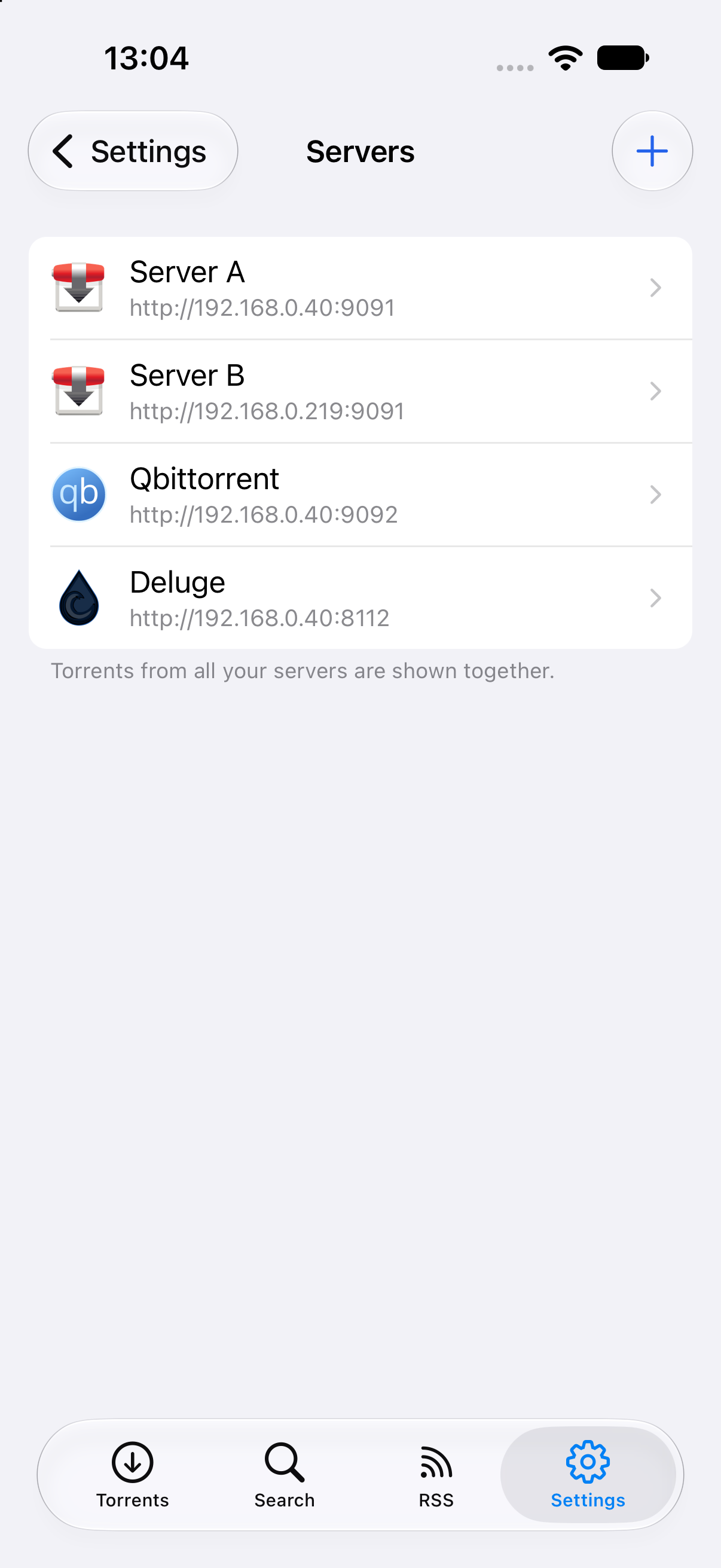
Seedly also works over plain HTTP, because many home servers offer nothing else, and it warns you when HTTPS is off. Use HTTPS or a VPN whenever you reach the server over the internet.
Self-signed HTTPS certificates are not supported. Use a certificate from a trusted authority, or plain HTTP on a network you trust.
On iPhone, iOS asks once whether Seedly may find devices on your local network. Allow it to reach servers at home.
Feeds from private trackers contain a personal key in their address, which Seedly keeps in secure storage. Your server downloads the torrent itself, so feeds that need a login or cookies do not work; feeds with the key in the address do.
To use Seedly away from home without opening a port, link your devices with Tailscale.
Open the Tailscale guide