Feeds that need a login
Your server downloads the torrent itself, so a feed that needs a login or cookies does not work. Feeds that carry the key in the address do.
 Seedly - Torrent RemoteMagyar
Guide
Follow the RSS feeds of your own trackers in one list and send an item to your Transmission server with one tap.
Seedly comes without any feed. You add the address of a feed you already use, for example the RSS link from your tracker’s settings page.
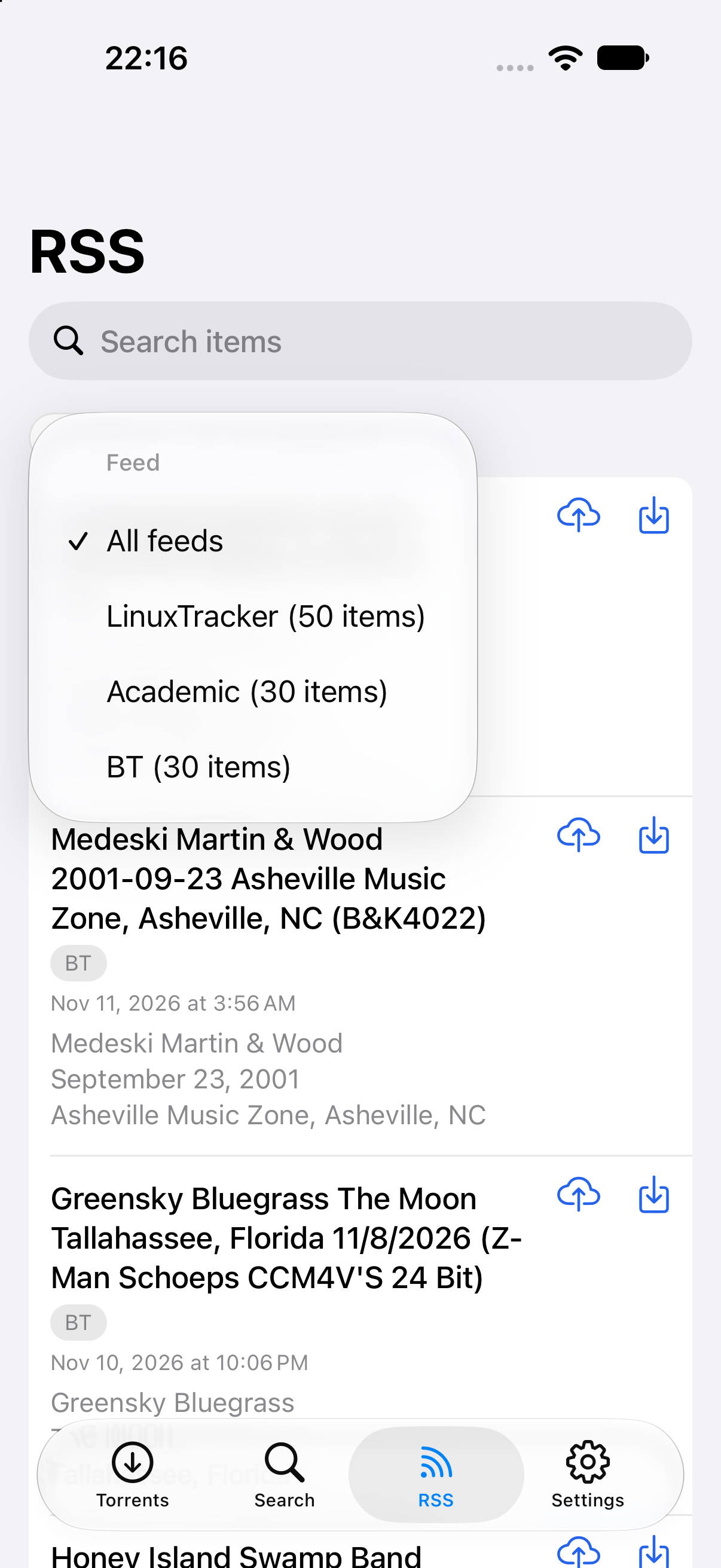
Go to Settings, then RSS feeds, and tap the plus button in the top right corner.
Paste the address of the feed. The name is optional: when you leave it empty, the host name of the address is used. Private trackers put a personal key in the address, so Seedly keeps the address in your device’s secure storage.
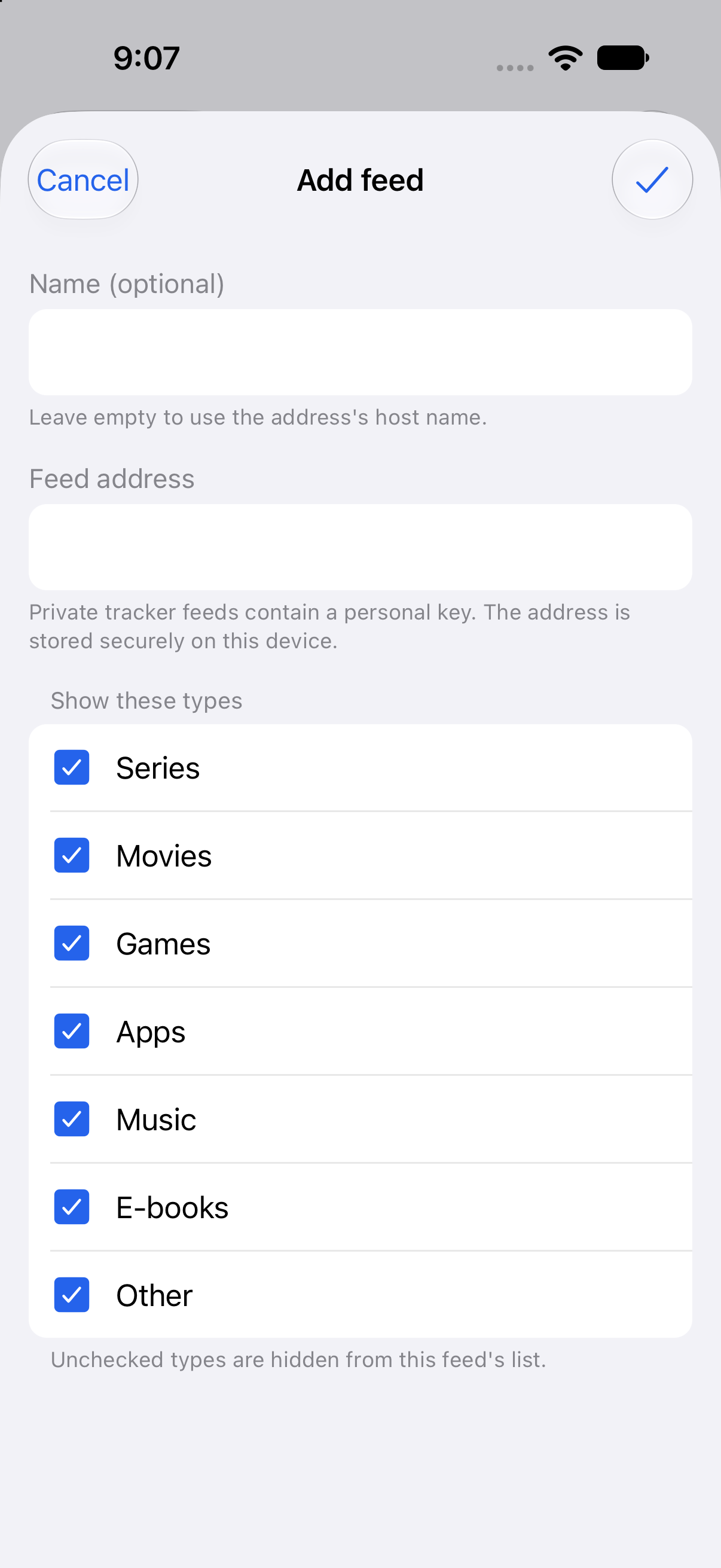
Every type is checked at first: series, movies, games, apps, music, e-books and other. Uncheck a type to hide it from this feed’s list. You can change it later by tapping the feed in the list.
The RSS tab shows the items of all your feeds in one list, the newest first. With more than one feed, every item shows the feed it comes from, and a category tag shows its type. Pull down to refresh.
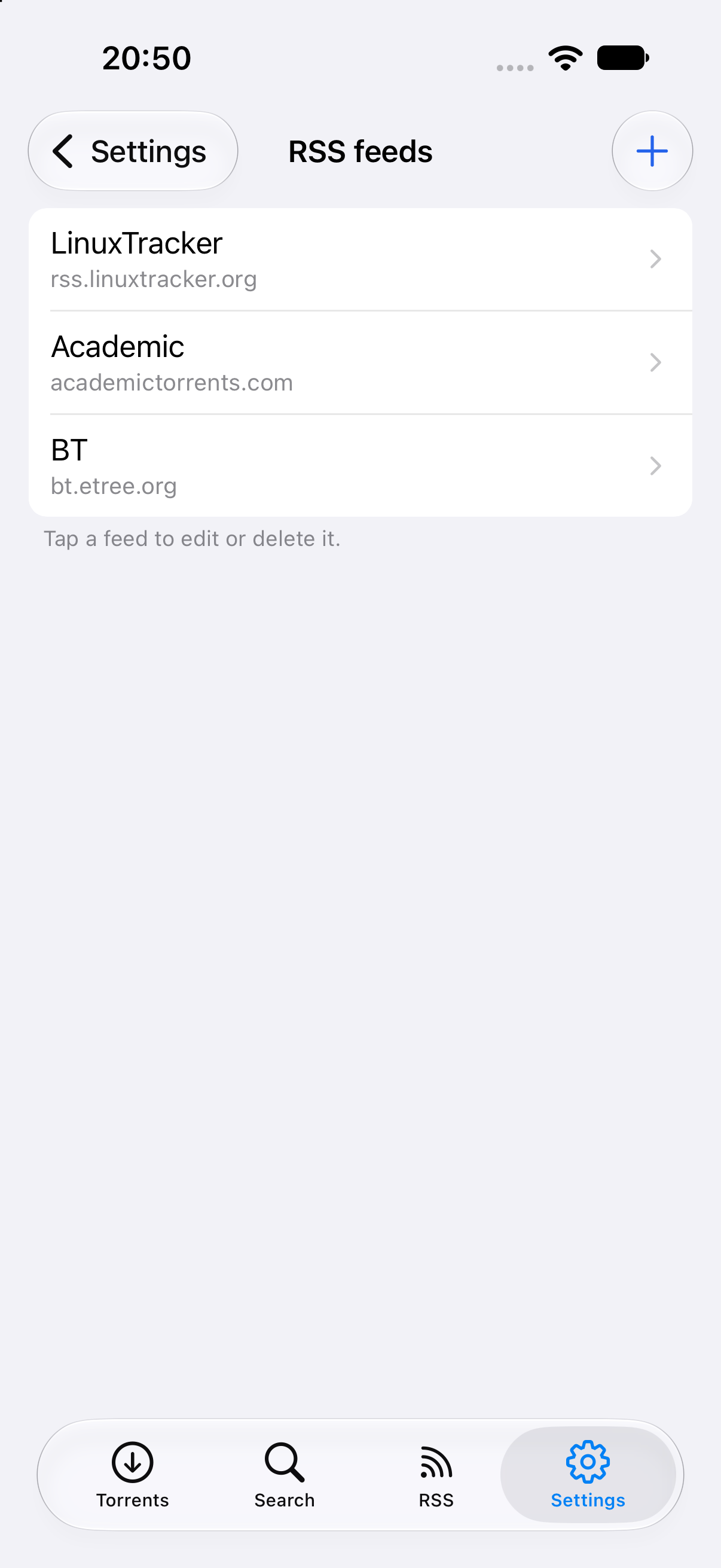
Tap the feed or category chip to pick one from a menu, with the number of items next to each choice. Use the search field at the top to look for a word in the titles. A short note tells you how many items your type settings hide.
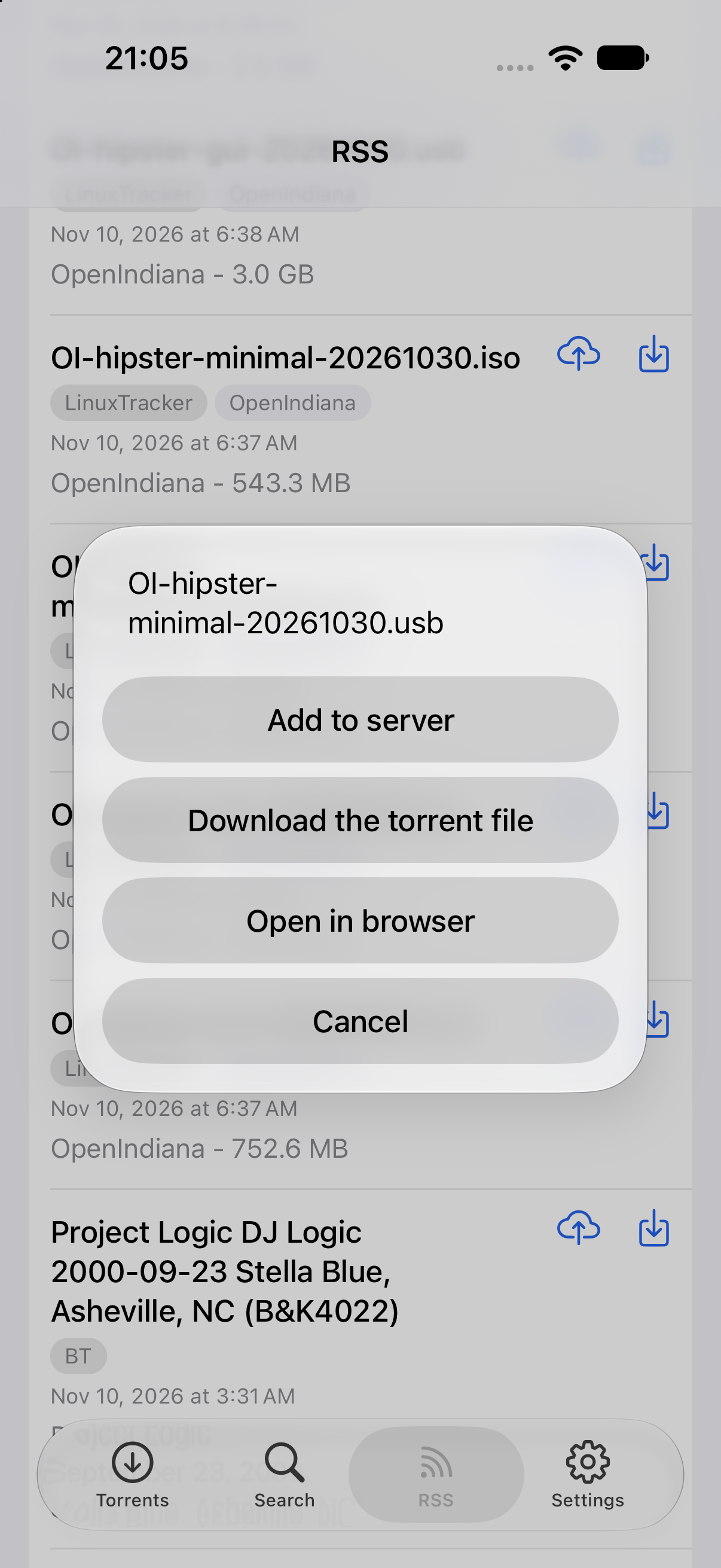
Tap the cloud button on an item to add its torrent to your Transmission server. With one server it is added straight away; with several, the app asks which one. The download button saves the .torrent file on your device. Tap the item itself for a menu with these two and a third entry that opens its web page.
Your server downloads the torrent itself, so a feed that needs a login or cookies does not work. Feeds that carry the key in the address do.
If a feed cannot be loaded, a note names it and the items of your other feeds are still shown.
Tap a feed in Settings, then RSS feeds, to change its name, address or types, or to delete it.
The feed addresses are never sent to the developer. Seedly connects only to the feeds and servers you add.
Seedly can also search through your own Prowlarr or Jackett and send a result to your server.
Read the search guide